Grace Period Self-Edit Portal
Notify Rush's Grace Period feature gives your customers a short window after placing an order to make changes themselves. This reduces support tickets, prevents fulfillment errors, and improves customer satisfaction by allowing customers to fix mistakes immediately after checkout.
Key Benefits
- Reduce support tickets for address corrections and order changes
- Prevent fulfillment errors by letting customers fix mistakes
- Improve customer satisfaction with self-service options
- Automatic order tagging to prevent premature fulfillment
- Flexible cancellation options (direct refund or hold for review)
- Track all customer actions with customizable order tags
How to Access
Click Grace Period in the App side menu.
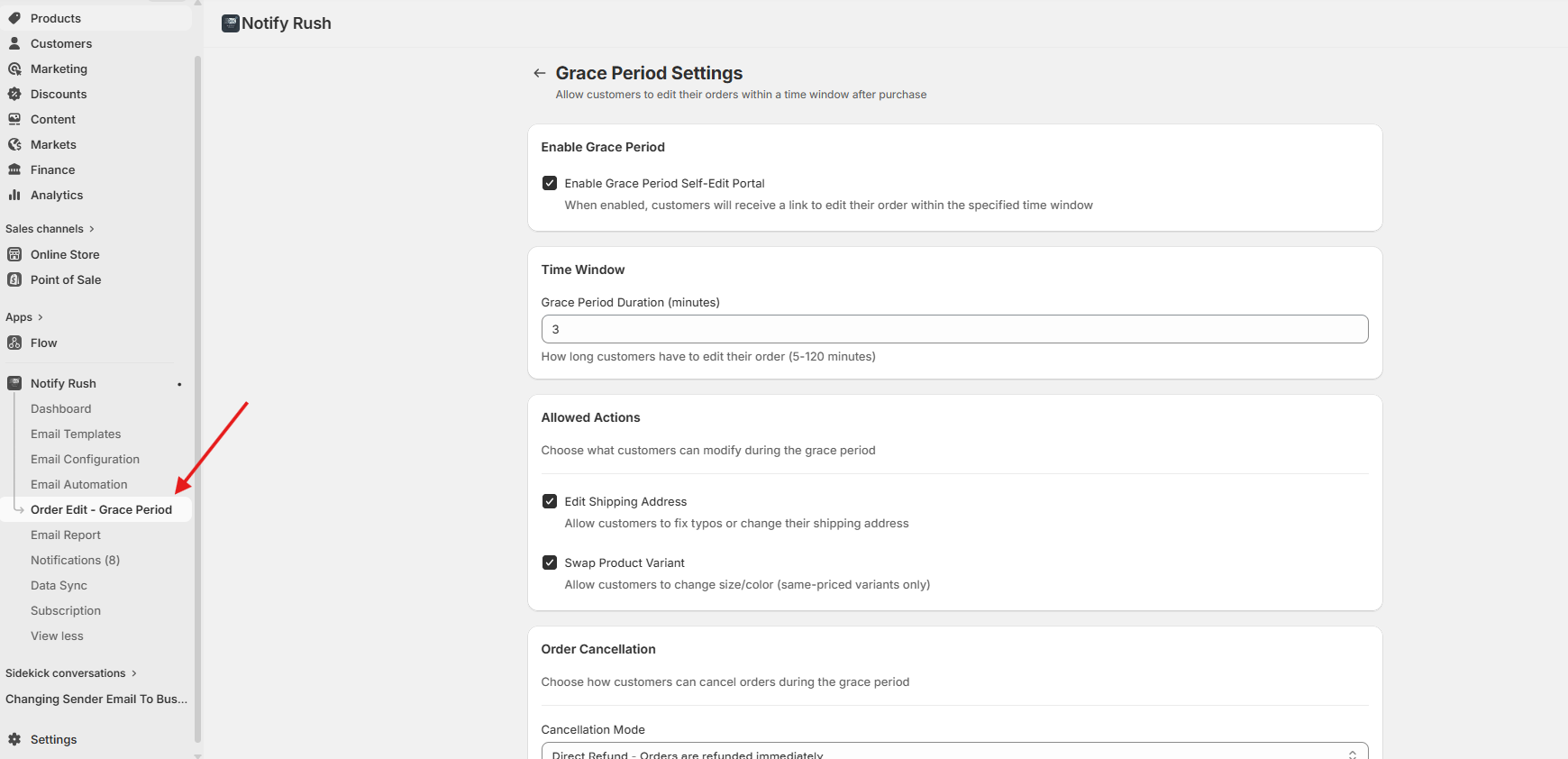
Grace Period Settings Overview
The Grace Period settings page allows you to configure all aspects of the self-edit portal.
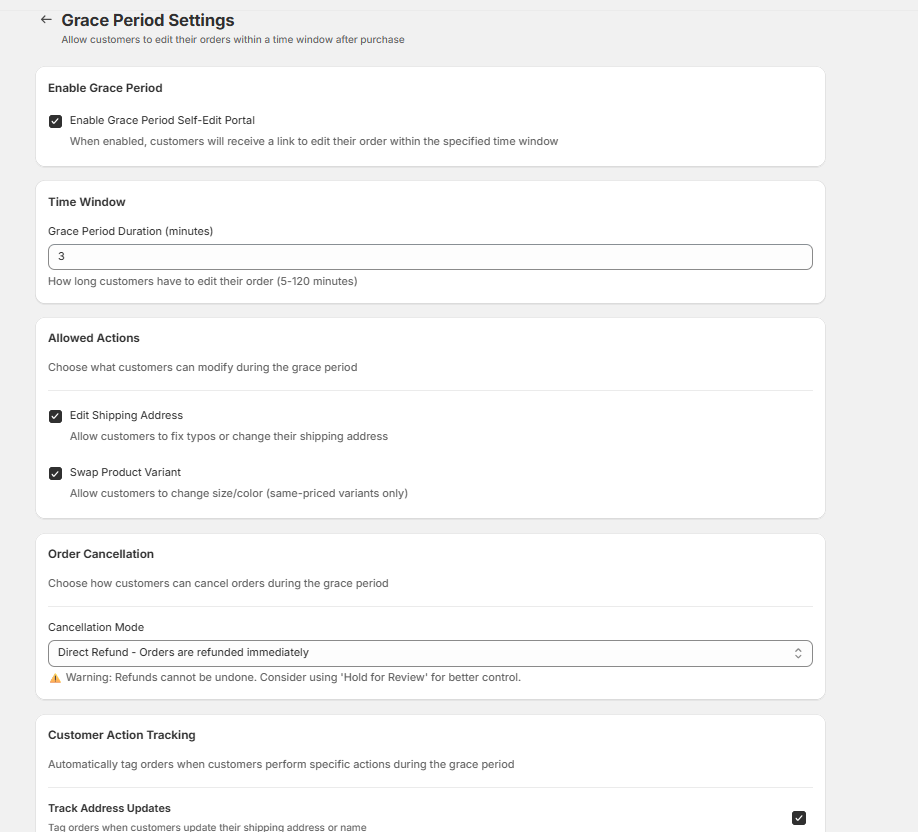
Enable Grace Period
Toggle the Grace Period feature on or off for your store.
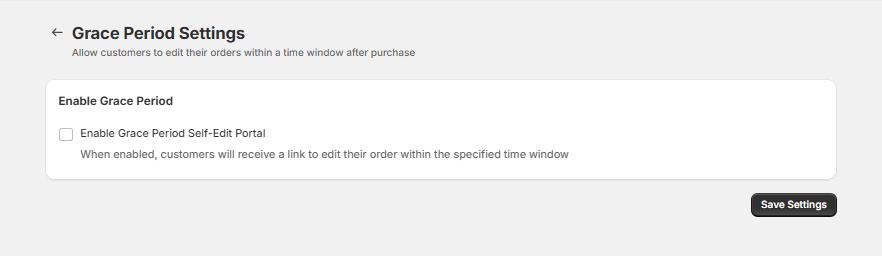
When enabled, customers will receive a link to edit their order within the specified time window.
Time Window
Configure how long customers have to edit their orders after purchase.

Grace Period Duration (minutes)
Set the time window between 5 and 120 minutes. After this period expires, customers can no longer make changes to their order.
Example Use Cases:
- 15 minutes – Quick window for catching immediate mistakes
- 30 minutes – Standard window for most stores (recommended)
- 60 minutes – Extended window for high-value orders
Allowed Actions
Choose what customers can modify during the grace period.
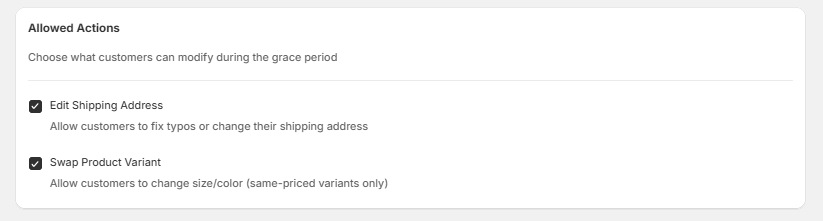
Edit Shipping Address
Allow customers to fix typos or change their shipping address. This includes:
- First and last name
- Street address (line 1 and line 2)
- City, state/province
- ZIP/postal code
- Country
Swap Product Variant
Allow customers to change product variants (size, color, etc.).
Important: Only same-priced variants can be swapped. This prevents pricing discrepancies and ensures order totals remain accurate.
Order Cancellation
Configure how customers can cancel orders during the grace period.
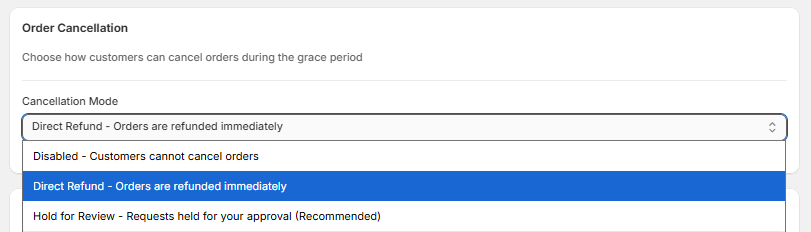
Cancellation Mode
Choose from three options:
| Mode | Description | Best For |
|---|---|---|
| Disabled | Customers cannot cancel orders | Stores that don't allow self-service cancellations |
| Direct Refund | Orders are refunded immediately | Low-risk products, digital goods |
| Hold for Review | Requests held for your approval | High-value items, custom products (Recommended) |
Direct Refund Mode
When set to Direct Refund, customers can immediately cancel their order and receive an automatic refund.
⚠️ Warning: Refunds cannot be undone. Consider using "Hold for Review" for better control over cancellations.
Hold for Review Mode (Recommended)
When set to Hold for Review, cancellation requests are queued for your approval before any refund is processed.
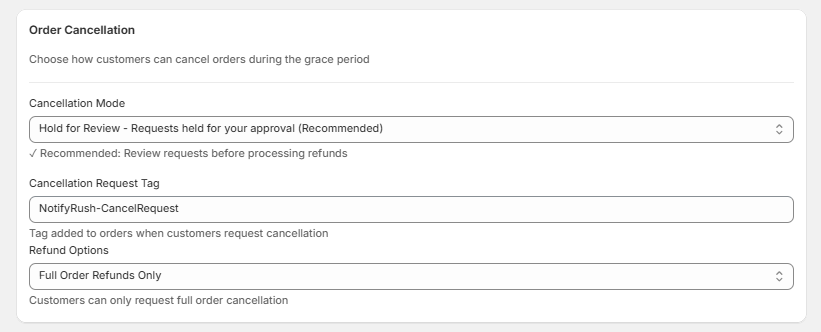
Cancellation Request Tag
Customize the tag added to orders when customers request cancellation.
Default: NotifyRush-CancelRequest
Refund Options
Choose what type of refunds customers can request:
- Full Order Refunds Only – Customers can only request full order cancellation
- Full or Partial Refunds – Customers can select specific items to cancel/refund
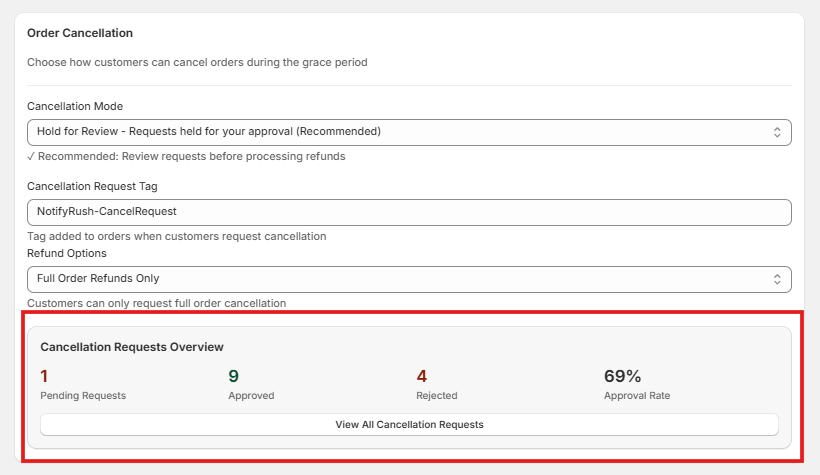
When Hold for Review is enabled, you'll see a statistics overview showing:
- Pending Requests
- Approved
- Rejected
- Approval Rate
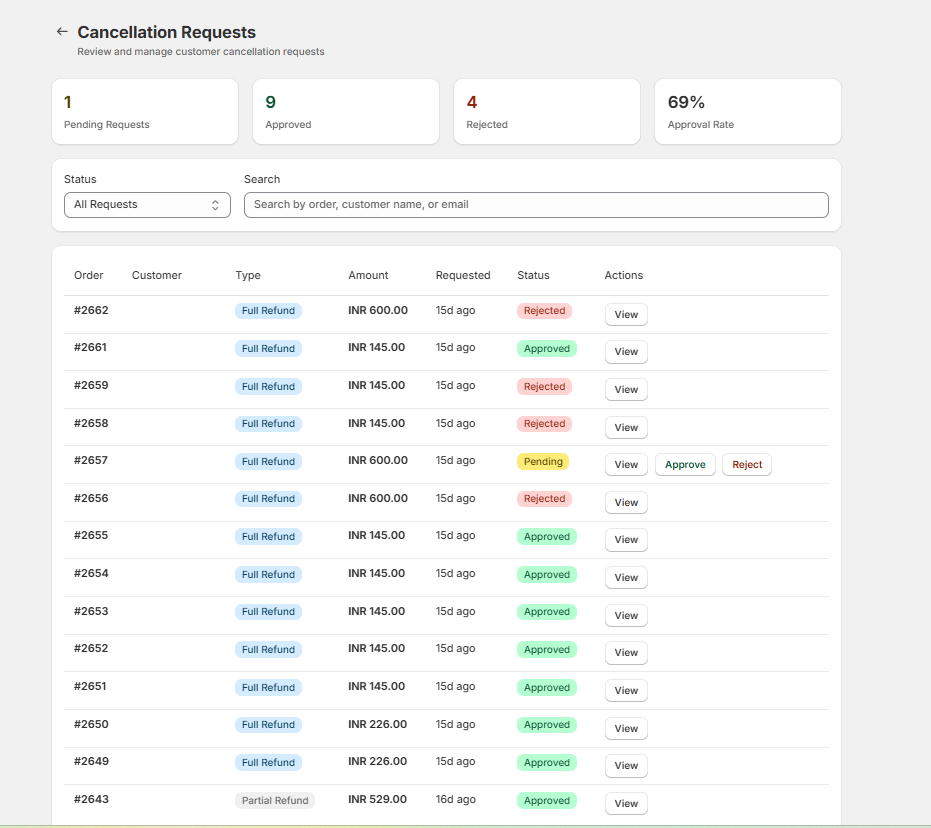
Click View All Cancellation Requests to manage pending requests.
Customer Action Tracking
Automatically tag orders when customers perform specific actions during the grace period. This helps you track changes and set up automations.
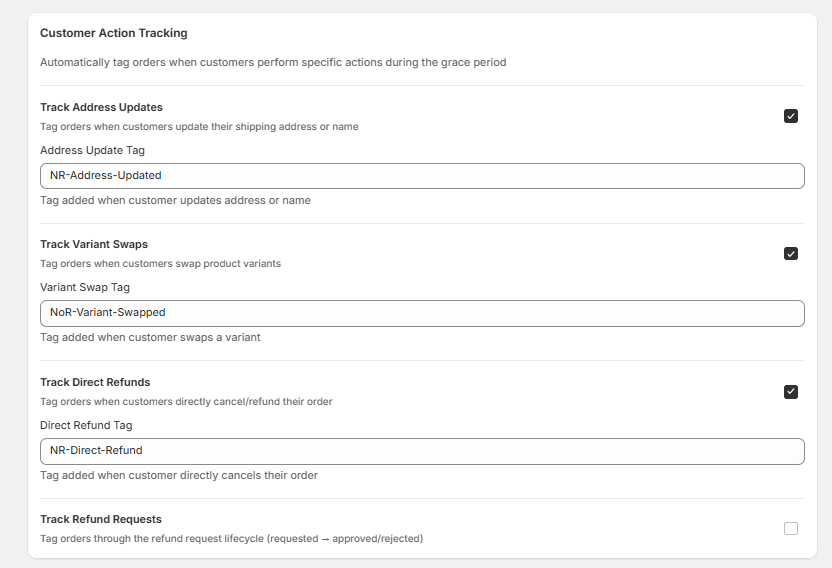
Track Address Updates
Tag orders when customers update their shipping address or name.
Default Tag: NR-Address-Updated
Track Variant Swaps
Tag orders when customers swap product variants.
Default Tag: NR-Variant-Swapped
Track Direct Refunds
Tag orders when customers directly cancel/refund their order (Direct Refund mode only).
Default Tag: NR-Direct-Refund
Track Refund Requests
Tag orders through the refund request lifecycle (Hold for Review mode).
| Tag | When Applied |
|---|---|
NR-Refund-Requested | Customer submits a refund request |
NR-Refund-Approved | Merchant approves the refund request |
NR-Refund-Rejected | Merchant rejects the refund request |
Email Notification
Send customers an email with a link to edit their order.
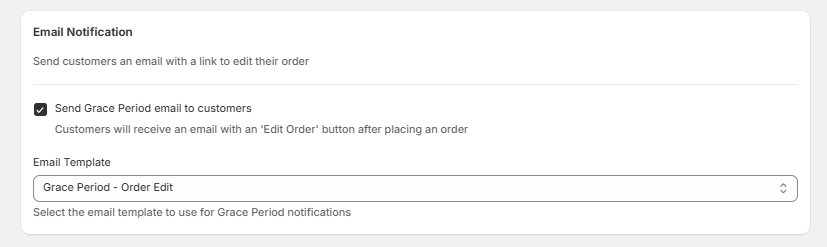
Send Grace Period email to customers
When enabled, customers will receive an email with an "Edit Order" button after placing an order.
Email Template
Select the email template to use for Grace Period notifications. Templates must be created beforehand in the Email Templates section of the app.
Note: If no template is selected, no email will be sent even if the option is enabled.
How It Works
The Grace Period feature follows this workflow:
- Customer places an order
- Order is tagged with your hold tag (e.g.,
NotifyRush-Hold) to prevent immediate fulfillment - Customer receives email with order confirmation and "Edit Order" button
- Customer can edit within the configured time window
- After grace period expires, the hold tag is replaced with the ready tag (e.g.,
NotifyRush-Ready)
Tip: Set up Shopify Flow or your fulfillment system to only process orders with the ready tag.
Customer Order Edit Portal
When customers click the edit link in their email, they're taken to a dedicated order editing portal.
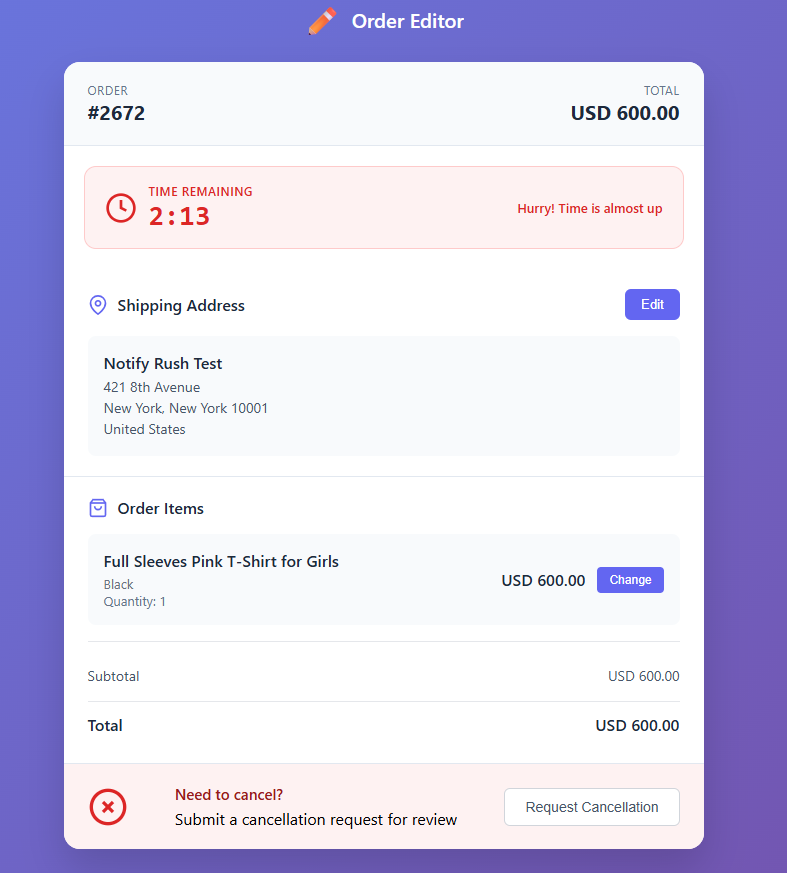
Portal Features
Time Remaining Display
A prominent countdown timer shows customers how much time they have left to make changes.

- Green timer when plenty of time remains
- Red timer when less than 5 minutes remain
- Clear messaging about the deadline
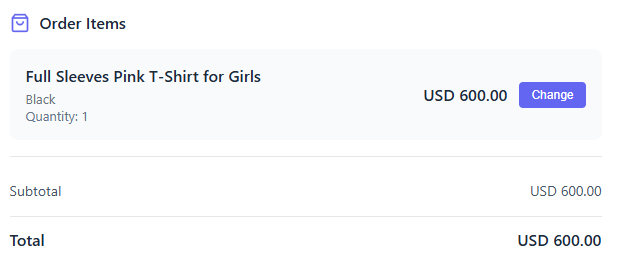
Order Summary
Customers can see their complete order details including:
- Order number
- Order total
- All line items with images, titles, variants, and quantities
Edit Shipping Address
If enabled, customers can click "Edit" to modify their shipping address.
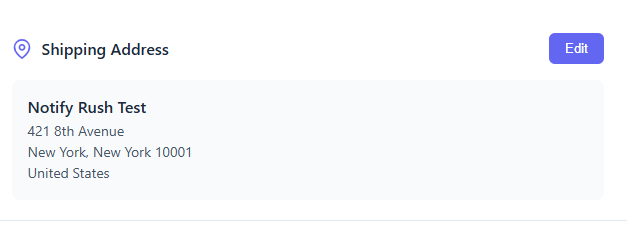
The form includes:
- First and last name
- Address line 1 and 2
- City, state/province
- ZIP/postal code
- Country
Changes are saved immediately to Shopify.
Swap Product Variant
If enabled, customers can click "Change" next to any item to swap variants.
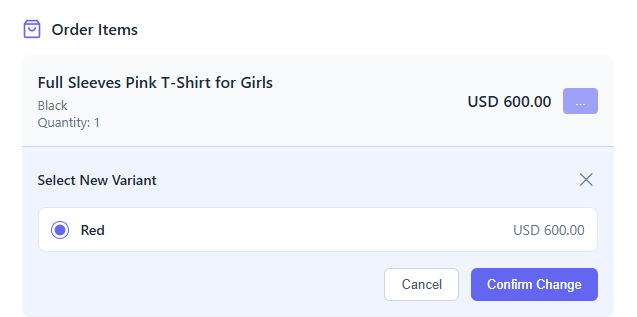
- Only same-priced variants are shown
- Customers select the new variant and confirm
- Changes are applied immediately to the order
- A confirmation badge shows the swap was successful
Note: Each item can only be swapped once during the grace period.
Cancel Order / Request Cancellation
Depending on your cancellation mode settings:
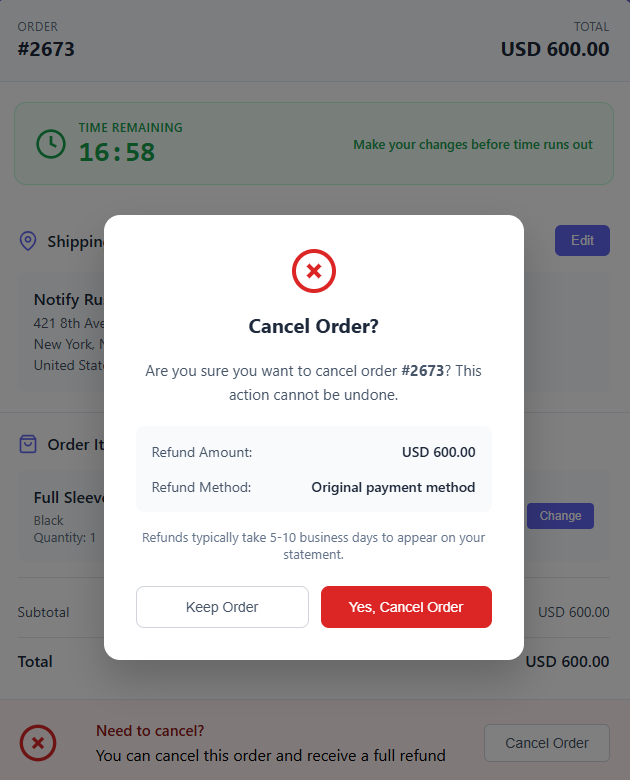
Direct Refund Mode
Customers see a "Cancel Order" button that immediately processes the refund.
Hold for Review Mode
Customers see a "Request Cancellation" button that submits a request for your review.
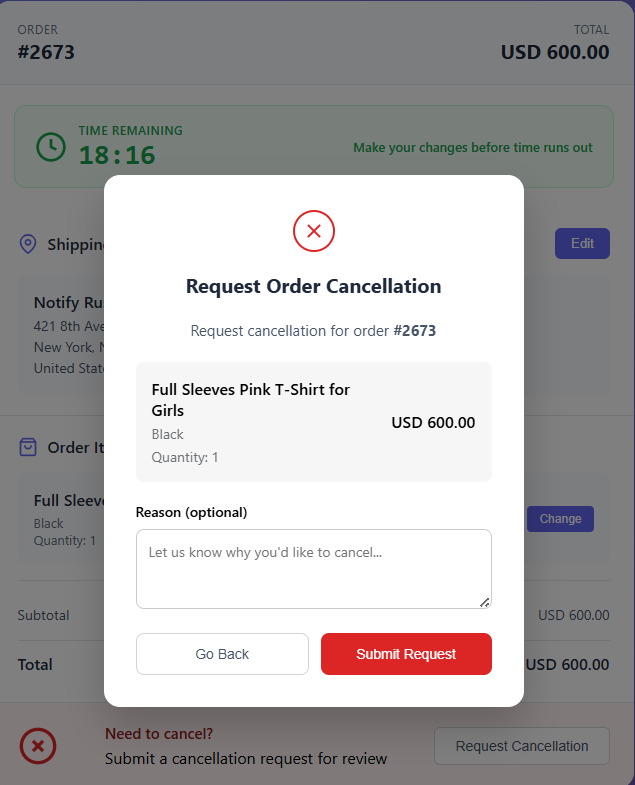
If partial refunds are enabled, customers can:
- Select specific items to cancel
- Adjust quantities for partial item refunds
- Add an optional reason/note
- See the calculated refund amount
Expired Link Page
When the grace period expires or the link is invalid, customers see a friendly message.
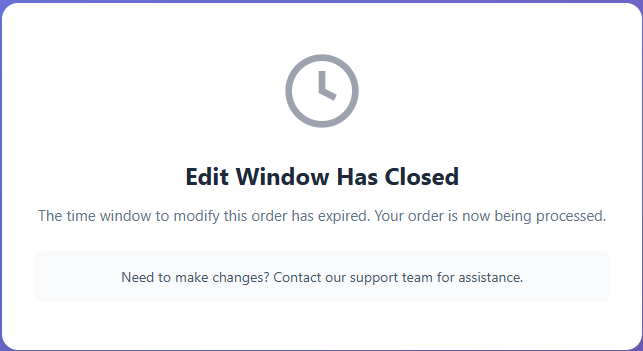
The page explains:
- The edit window has closed
- Their order is being processed
- How to contact support if they need assistance
Best Practices
Recommended Settings for Most Stores:
- Grace Period: 30 minutes
- Allow Address Edit: ✓ Enabled
- Allow Variant Swap: ✓ Enabled
- Cancellation Mode: Hold for Review
- Send Email: ✓ Enabled
For High-Volume Stores:
- Consider shorter grace periods (15-20 minutes) to speed up fulfillment
- Use Direct Refund mode if you have low cancellation rates
- Enable all tracking tags for analytics
For High-Value Products:
- Use longer grace periods (45-60 minutes)
- Always use Hold for Review for cancellations
- Enable Full Order Refunds Only to prevent partial cancellations
Troubleshooting
Customers not receiving edit emails
- Verify an email template is selected in Grace Period settings
- Check that "Send Grace Period email" is enabled
- Ensure your sender email is verified in Email Settings
Orders being fulfilled too early
- Verify the hold tag is being applied to orders
- Configure your fulfillment system to exclude orders with the hold tag
- Check that the grace period duration is appropriate
Variant swap not working
- Only same-priced variants can be swapped
- Each item can only be swapped once per grace period
- Verify the product has multiple variants available
Cancellation requests not appearing
- Ensure Cancellation Mode is set to "Hold for Review"
- Check the Cancellation Requests page for pending requests
- Verify the cancellation request tag is being applied